

Decoration
Arrange Adornment
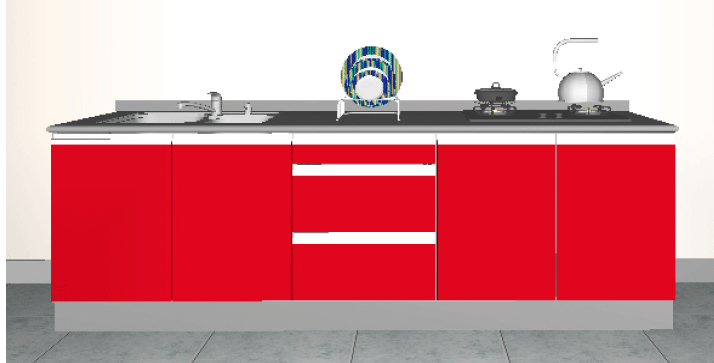
Function: To add decoration around the sink and gas cooker automatically.
Steps:
1. Install the sink and gas cooker in the cabinet.
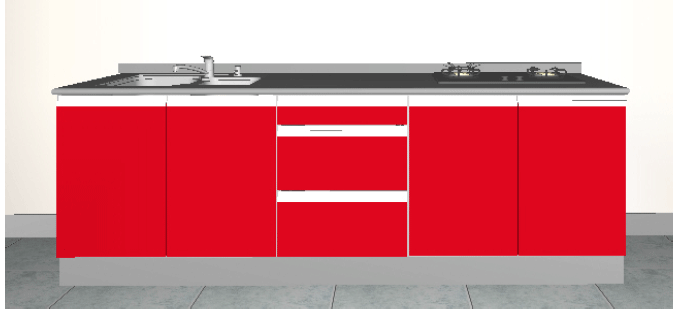
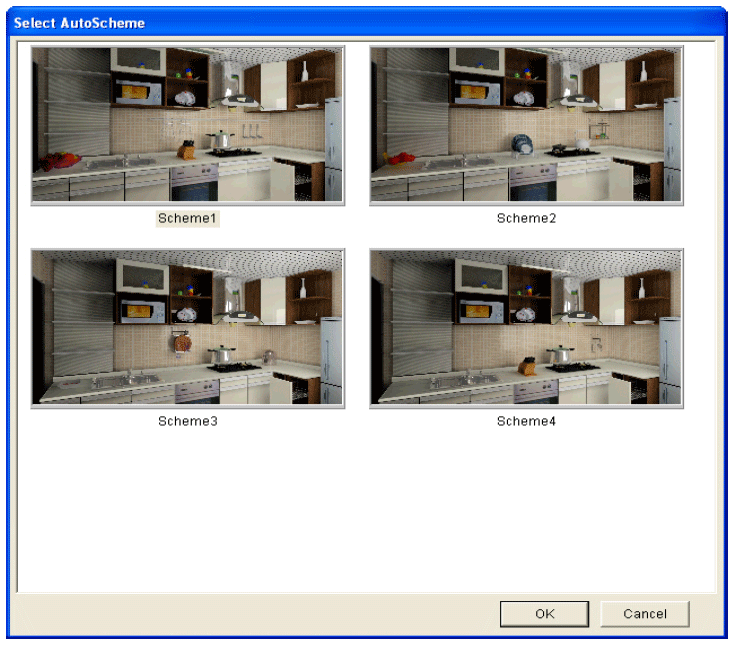
2. Select Layout Arrange Adornment. The scheme select dialogue will appear.3. Select one of the schemes and click ‘OK’ to finish. The decoration will be put into the scene as same as the selected scheme.
Checking
Check
Function: To check if there is any interference in the kitchen design.
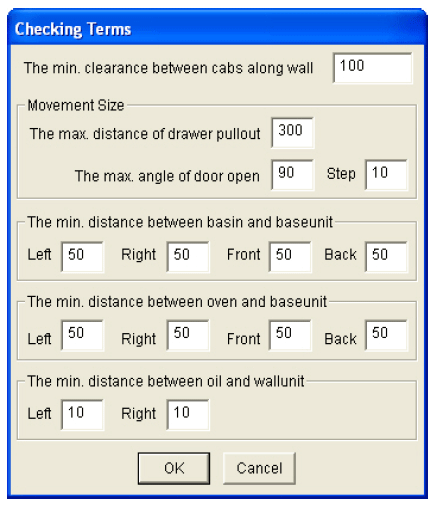
Steps: Click “Layout” “, Check”In the pop-up dialogue box “Checking”, click “Terms Setting”, the “Checking Terms” dialogue box will pop up, and set the detailed checking values here.Tick the checking items to be checked on the left, click “Start checking…” to begin. After finishing checking, the rest will be shown in the pop-up dialogue box. Double-click the items in the result list, and you can see the result in detail.
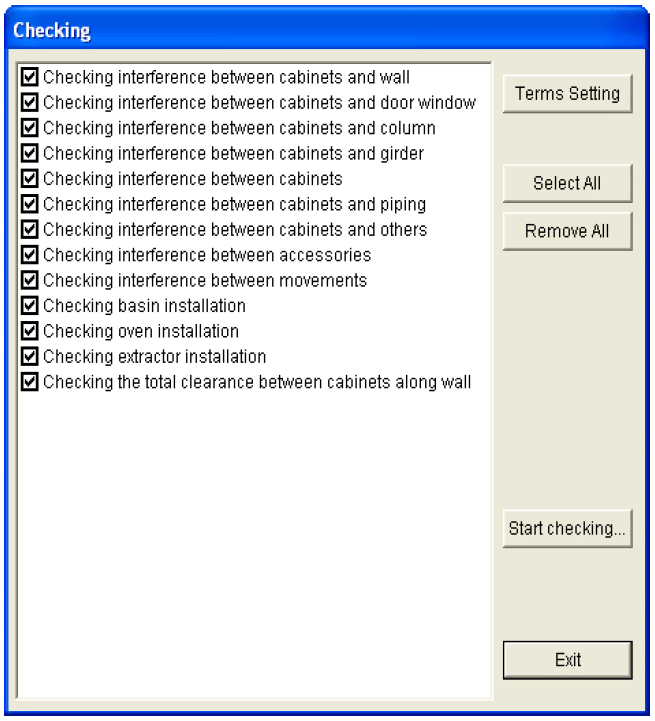
Click “Terms setting” button, user can set the parameter of the checking.
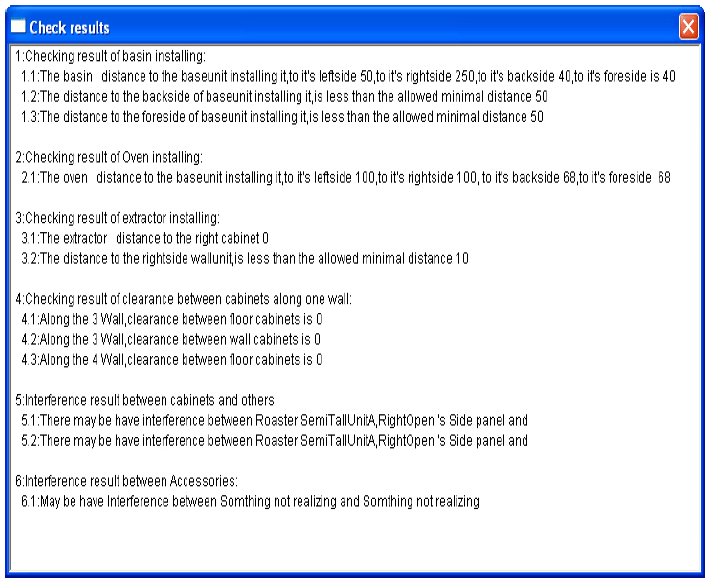
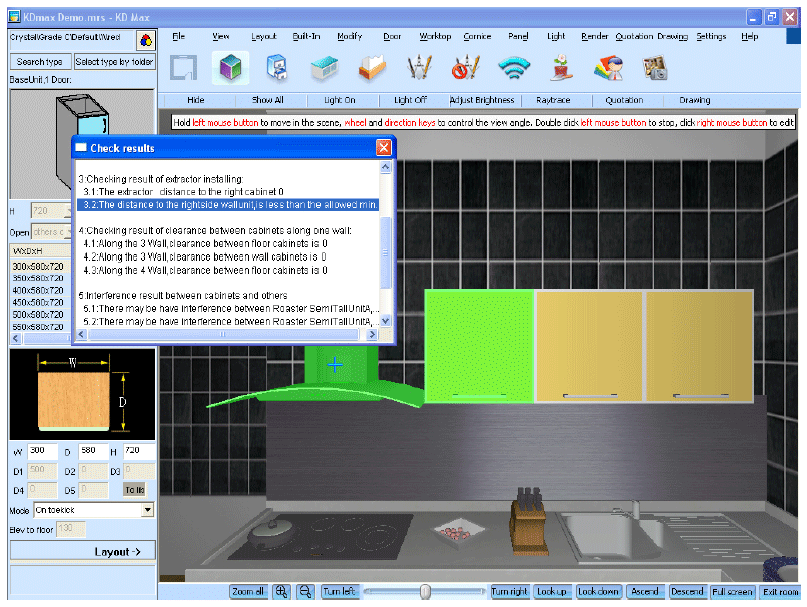
Left click the report, and the system will turn to the reference cabinet and high light them in green colour.
Dimension Check
Dimension Check
Function: To check the cabinet's dimensions.
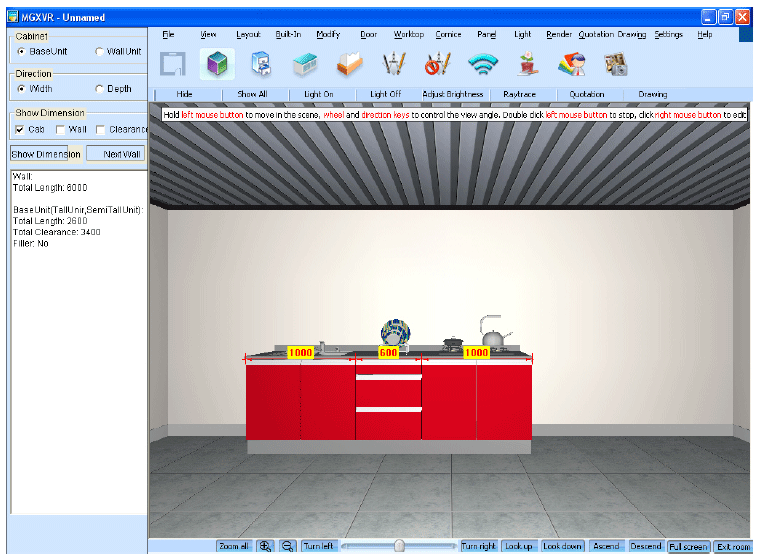
Steps: Click “Layout” - “Dimension Check”. Then select a wall that the user wants to get the dimensions for. It will pop up a dialogue that shows all the dimensions of the wall and every detail of the cabinets on this wall.
Hide Object
Steps: Select the Layout - Hide object command. According to the prompt, select the object to be hidden (multi-select with shift+the left mouse button) and right click, and then the selected object is hidden.
Hide Surface
Steps: Select Layout - Hide surface. According to the prompt, select the surface to be hidden (multi-select with shift +the left mouse button) and right click, and then the selected surface is hidden.
Hide & Show Structure
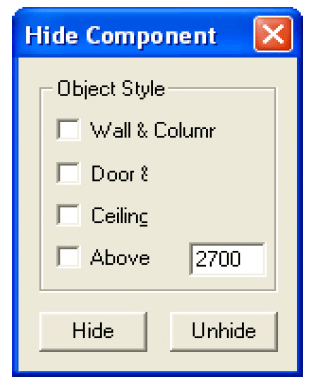
Steps: Select Layout - Hide and show structure
In the pop-up “Hide component” dialogue box, tick the “object style” to be hidden or unhidden, finalised by clicking “Hide” or “Unhide”.
Hide Object except Water Position
Select Layout - Hide Object except Water Position
The system will hide the cabinets and other structure except the sign of the water inlet.
Unhide All
Select Layout - Unhide all. The object and surface hidden previously will be displayed again.