Change Size
Modify
Change Size
Free
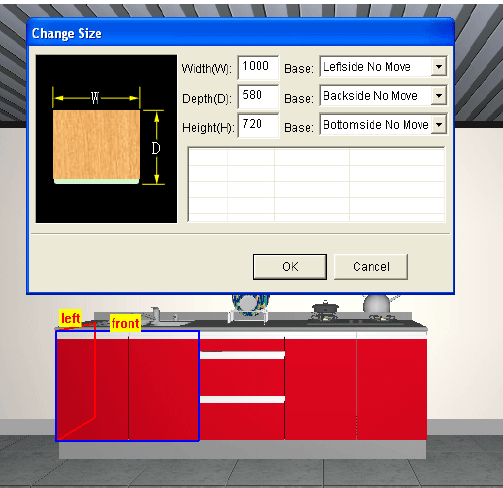
Change the width, depth and height of an object based on 3 bases
Steps:
1. Select Modify - Change Size - Free(Shortcut Key: F9)2. Left-click to choose the object you want to modify.3. The system will pop up the “Change Size” dialogue box.4. Change Size by modifying the values in the dialogue; choose bases to change size from a different direction.5. Click “OK” the end the setup.
Change Width (Extend/Trim)
Change the width of a unit by extending to/ trimming by another cabinet unit to fill the vacancy.
Steps:
1. Select Modify - Change Size - Change Width (Extend/Trim)2. Select the unit you want to modify and the referent unit.
Filler Extend
Use filler extend to extend the filler to fill space between two units.
Steps:
1. Select Modify - Change Size - Filler Extend.2. Select the filler and the referent unit you want the filler to extend to.
Replace
Replace a unit with another.
Steps:
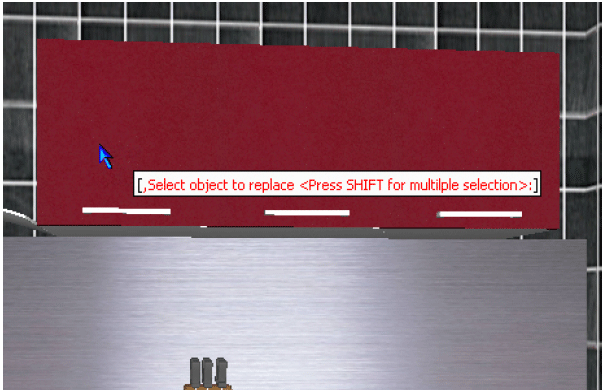
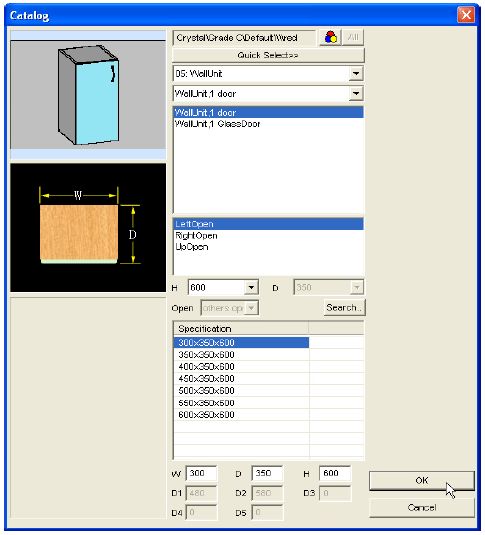
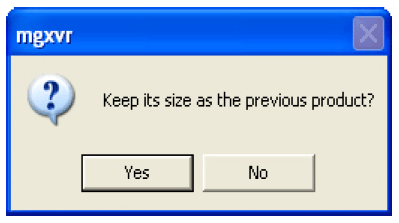
1. Select Modify - Replace (Shortcut Key: F9)2. Select the cabinet unit or accessory to be replaced, as you can see the instruction near the cursor.3. It will appear the library; choose one to replace the previous, click “OK”.4. A dialog box will pop up, inquiring whether to keep its size as the previous product. Click “Yes” to keep the size of the previous, click “NO” to apply the size of the new product.
Drag Drop
Unit Drag Drop
Function: To relocate the cabinet.
Steps:
Select Modify - Unit Drag Drop (Shortcut Key: F3)
Use Unit Drag Drop to move a cabinet unit to a place next to another object, e.g. a wall or another unit. Use your mouse to locate the unit you want to move. There will be a green shadow; the place is suitable for that unit.
Fix Edge
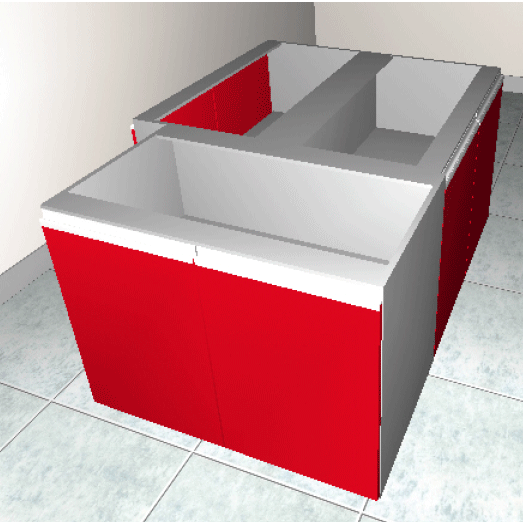
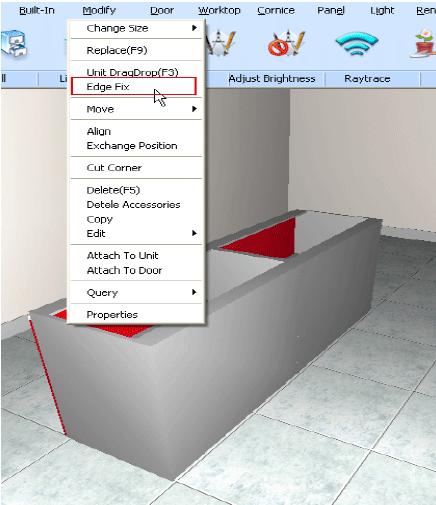
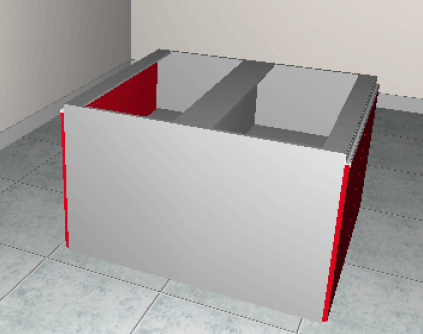
Function: The Edge Fix function is for creating the island unit design of the picture below.
Step:
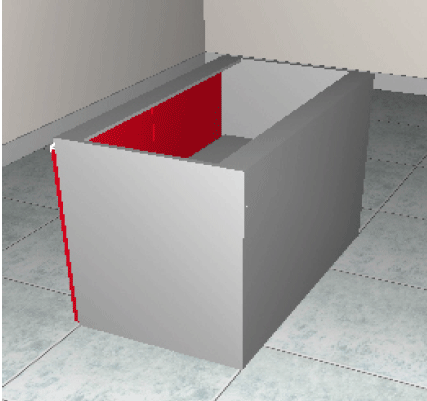
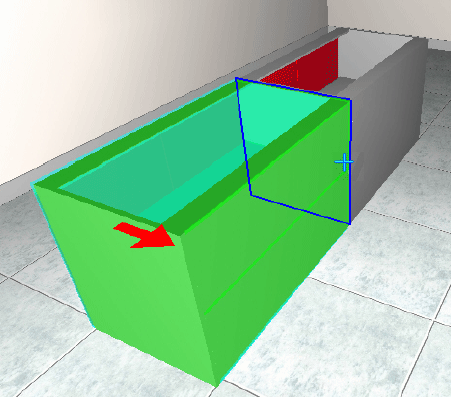
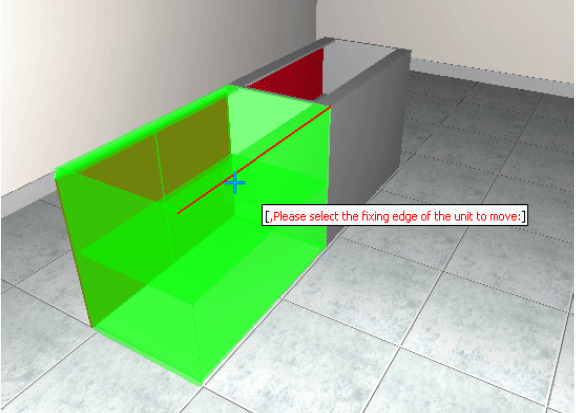
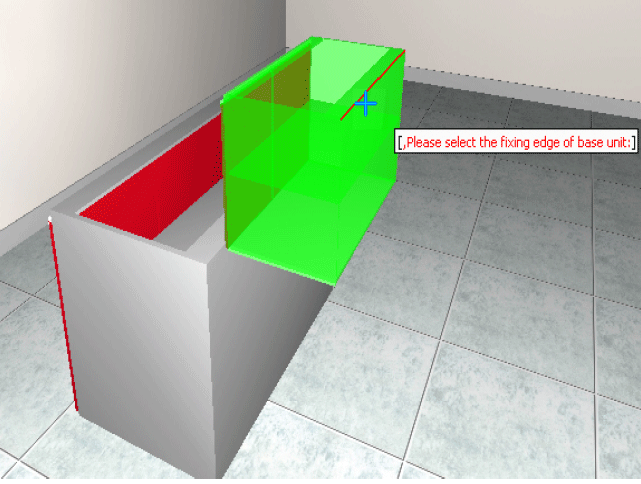
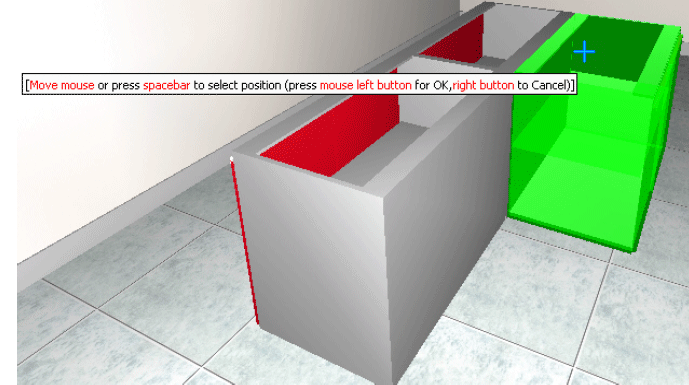
1. Layout one cabinet in the room.2. Layout another cabinet next to the first cabinet.3. Select Modify - Edge Fix function.4. Move the cursor to the edge of the cabinet, it will show in red colour. Left click the mouse to select it.5. Then move the cursor to the first cabinet’s edge, and left click to select.6. There is a green shape snap to the back of the first cabinet. It is the preview.7. Left click the mouse to confirm. Then the cabinets will snap to each other.
Unit Position
Unit Position
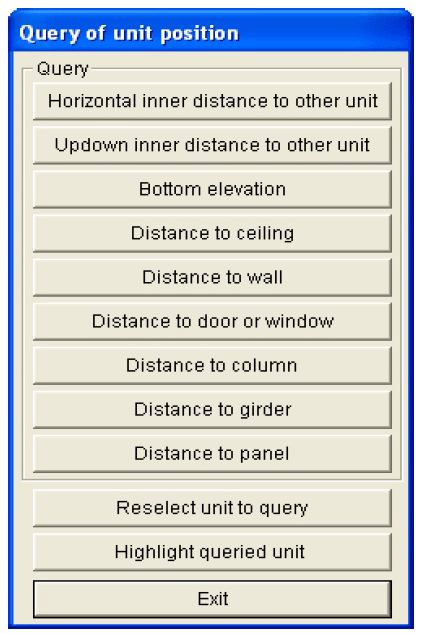
Show the unit position of the selected unit.
Steps:
1. Select Modify - Query - Unit Position2. Select a cabinet unit by clicking; it will pop up a “Query of Unit Position” dialogue box.3. Choose what you want to query according to the prompt of the dialogue box.